
Editing Your Unit Profile
Quick Links to jump to specific sections
- Logging In
- Editing Unit Details
- Adding/Updating Unit Image
- Updating Unit Address/Mailing Address
- Adding/Updating Unit Social Media Accounts
- Finalizing and Updating Unit
- Going to Your Unit Page
Logging In
To login to your account to edit your profile, please follow the following steps. You may click on any image to enlarge it for easier viewing.
Main Navigation Bar
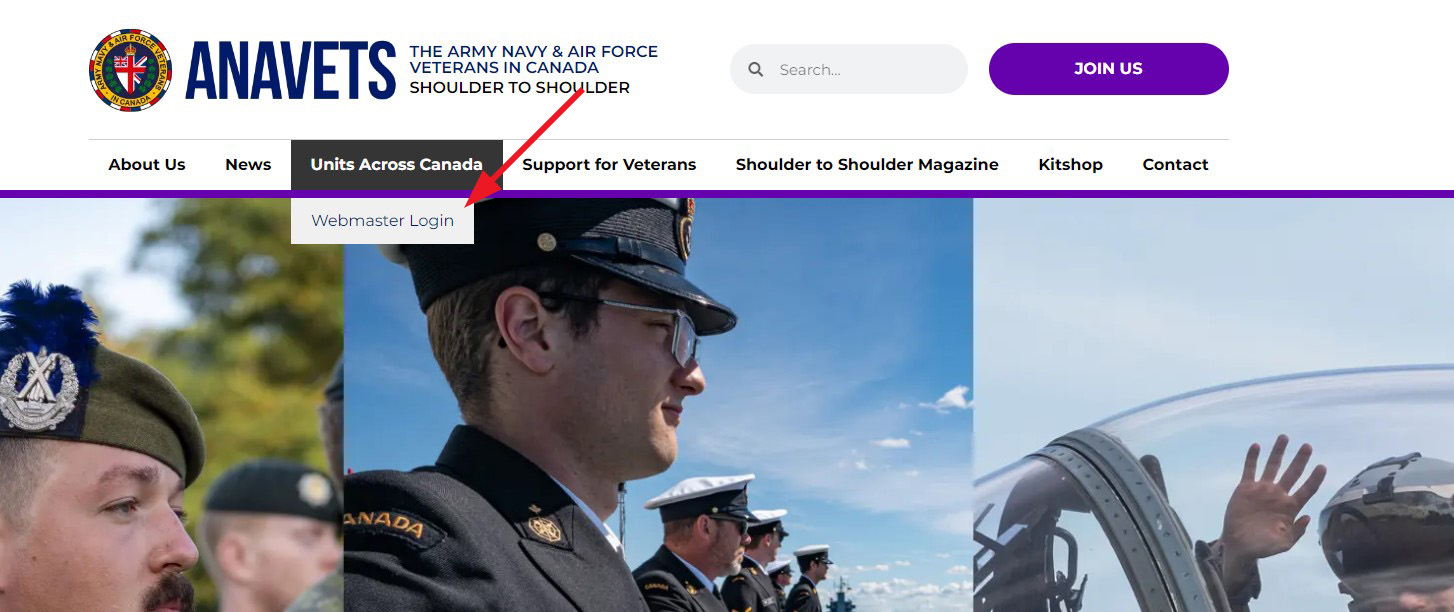
To login using the main navigation bar at the top of any page, hover over “Units Across Canada” at the top of the page and a submenu item will appear titled “Webmaster Login”. Click this.
Footer Button
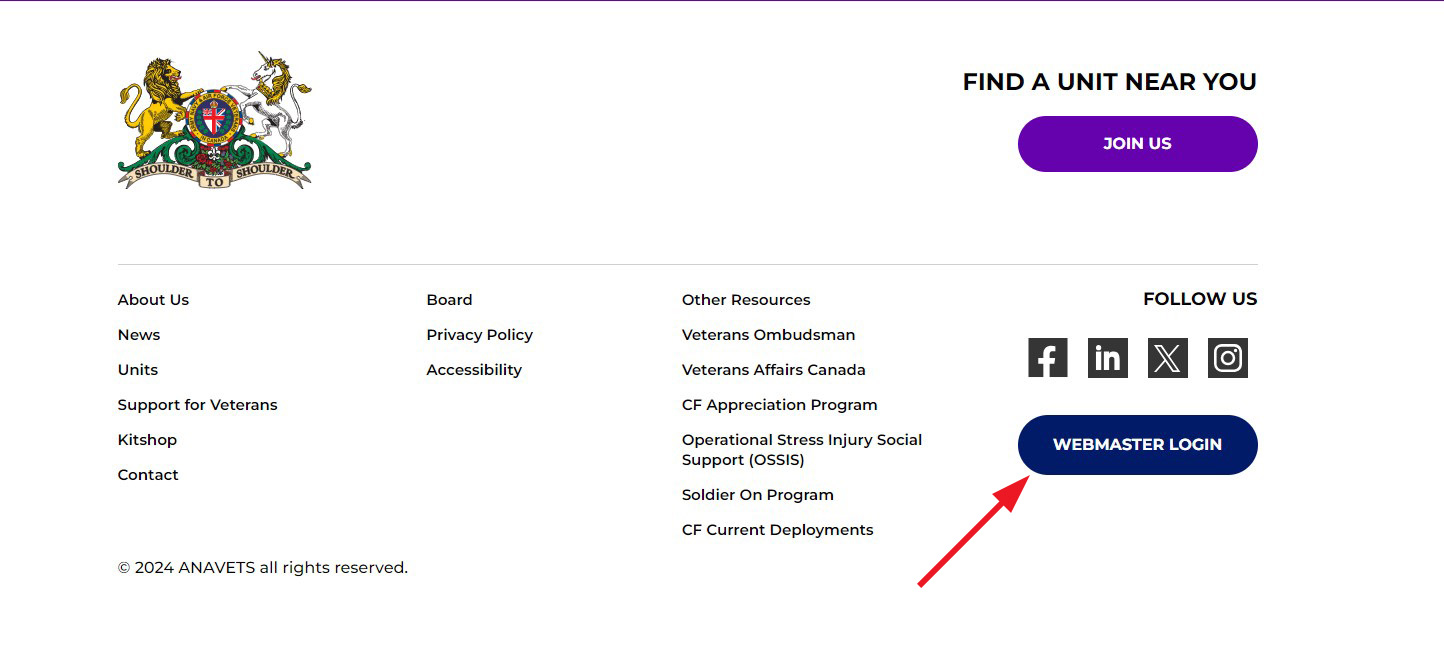
To login using the button at the bottom of any page, click on the button titled “Webmaster Login”.
Editing Unit Details
To edit your unit details follow these steps. You may click on any image to enlarge it for easier viewing.
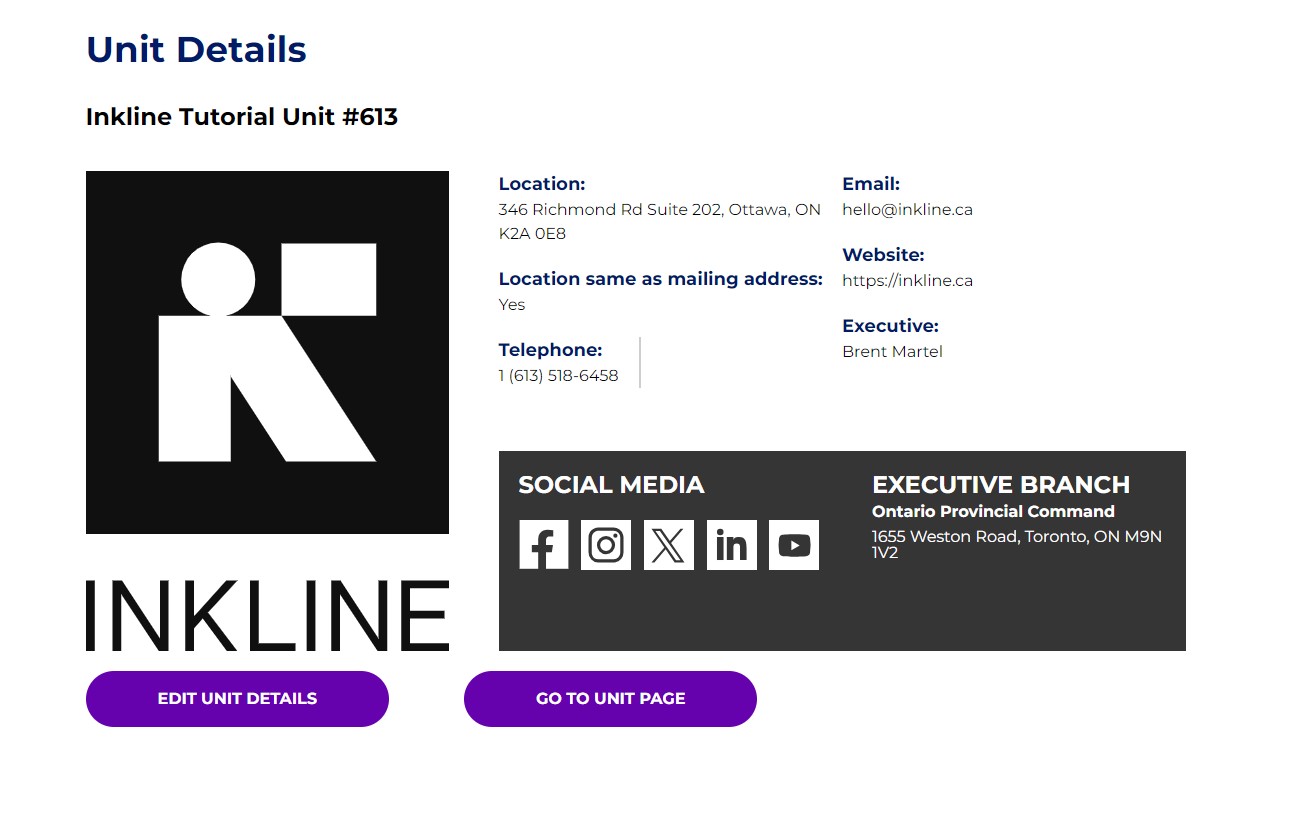
On your account page scroll down until you see the section titled “Unit Details”.
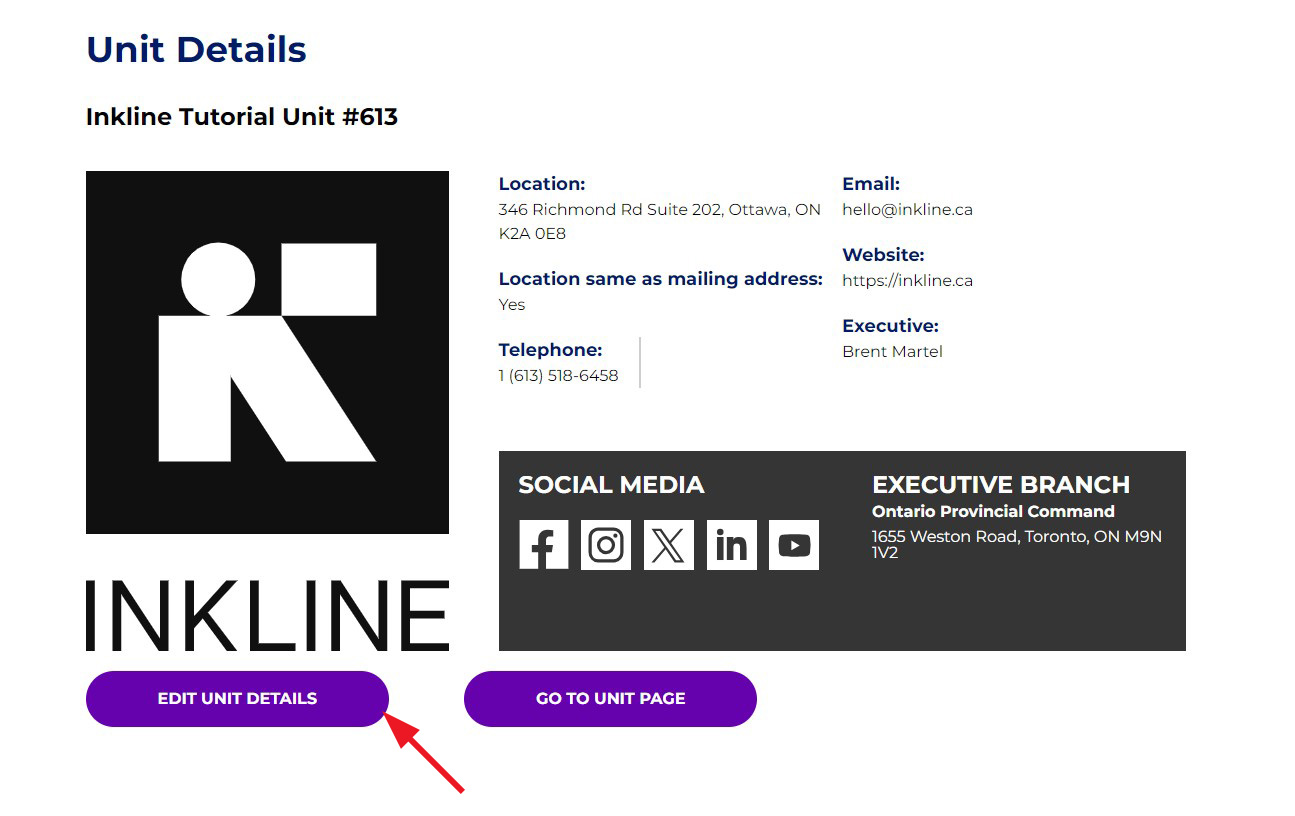
Below the unit image (if one is being used) you will see a button labeled “Edit Unit Details”, click this.
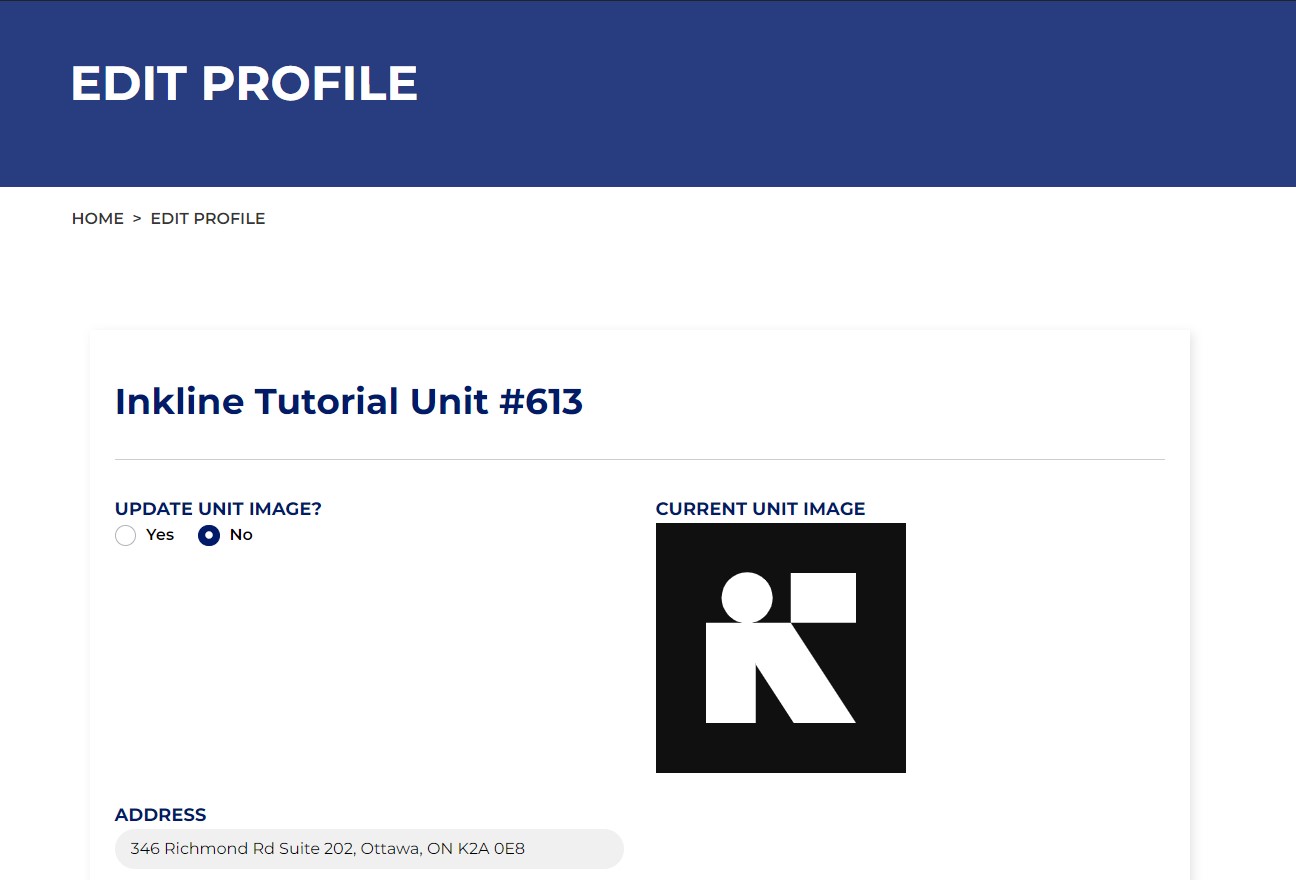
You will now be on the edit profile page, where you can edit/update your unit’s information.
Adding/Updating Unit Image
To add or update the unit’s main image follow these steps. You may click on any image to enlarge it for easier viewing.
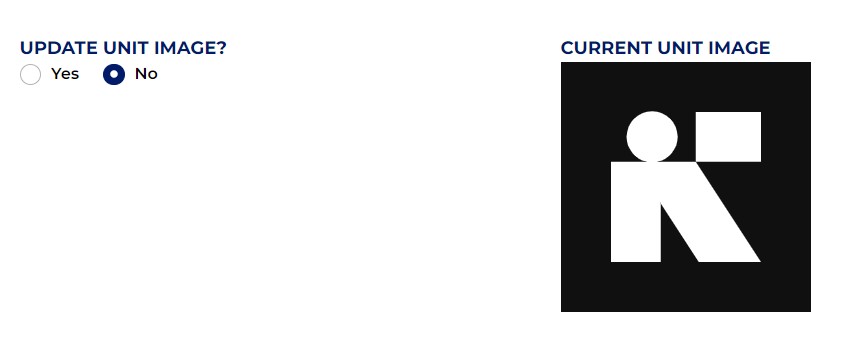
On the page titled “Edit Profile”, you will see your unit’s name. Directly below this you will see a selection titled “Update Unit Image?” where you may either select “Yes” or “No”. No being the default option. You will see the current unit image (if applicable) on the right of the screen.
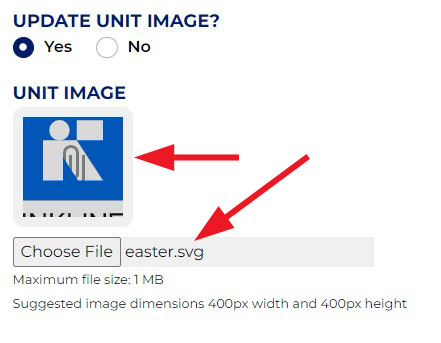
To add or update your unit’s image, select the option “Yes”. This will bring up a new area titled “Unit Image” with a button titled “Choose File”. Click this.
Please note: The maximum file size is 1mb for the image. We suggest a format of .jpg with dimensions no larger than 400px for width and 400px for height. If the unit had an image previously, you will still see the previous image on the right of the screen after uploading an image before submission.

Once you’ve selected a image file to upload, you will see a preview of the image within the grey box as well as the file name.
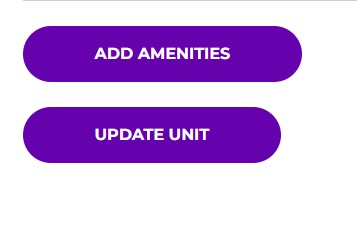
Once satisfied with your changes, scroll to the bottom of the page and click the button labeled “Update Unit”. This will redirect you to your account page.
Please note: If making multiple changes for your unit, you can make all changes first then click on “Update Unit”.
Updating Unit Address/Mailing Address
To update the unit address and/or mailing address scroll down until you see the text field “Address”.
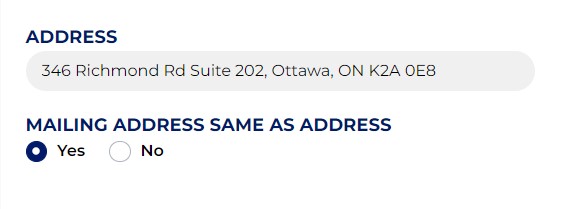
If the unit’s mailing address is different from this address, select the option “No” under “Mailing Address Same As Address”. This will show a new field beside “Address” titled “Mailing Address”. Fill this in with the mailing address for your unit.

Once satisfied with your changes, scroll to the bottom of the page and click the button labeled “Update Unit”. This will redirect you to your account page.
Please note: If making multiple changes for your unit, you can make all changes first then click on “Update Unit”.
Adding/Updating Social Media Accounts
To add or update the unit’s social media accounts, scroll down to the section titled “Social Media”.
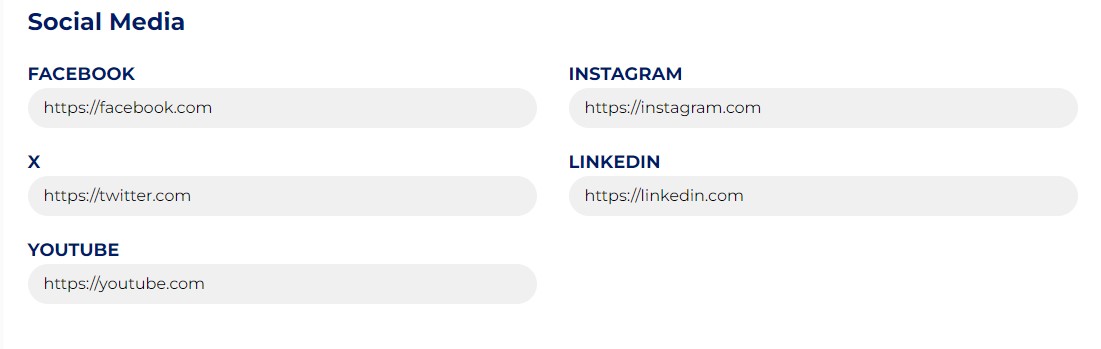
Here you can add social media accounts for your unit for Facebook, Instagram, X (formerly known as “Twitter”), LinkedIn and YouTube. You can fill in or leave empty any of these fields, they are not necessary to be filled out.
Once satisfied with your changes, scroll to the bottom of the page and click the button labeled “Update Unit”. This will redirect you to your account page.
Please note: If making multiple changes for your unit, you can make all changes first then click on “Update Unit”.
Finalizing and Updating Unit
Once you’ve added/edited/removed details as well as amenities, scroll to the bottom of the page until you see a button labeled “Update Unit”. Clicking this will update the unit with the information you’ve provided and redirect you to your account page.
Going to your Unit Page
Within your account page, scroll down until you reach the section labeled “Unit Details”.
Here you will see at the bottom a button labeled “Go to Unit Page”. Clicking this will bring you to the live public page for your unit for any visitor to the site to see.